Know Your Linux: Essential Commands for Ubuntu, CentOS, and Debian
System Information and Basic Commands:
Check Linux Version:
cat /etc/redhat-release- Check Linux version (for CentOS/RedHat).hostnamectl- Display or change the system's hostname.uname- Display system information (OS, kernel version).
Memory and Disk Usage:
cat /proc/meminfo- Check memory information.df -Ph- Display disk space usage in human-readable format.du -h /directory/- Check disk usage of a directory.du -hc --max-depth=1 /directory/- Summary of disk usage.
File and Directory Operations:
Listing and Navigating Directories:
ls- List directory contents.ls -R- List contents recursively (including subdirectories).ls -a- Show hidden files.ls -al- Detailed file information (permissions, size, etc.).pwd- Display the current directory path.cd /path/to/directory- Change directories.cd ..- Move up one directory.cd -- Go to the previous directory.cd- Go to the home directory.
Creating and Removing Directories:
mkdir DirectoryName- Create a new directory.rmdir DirectoryName- Remove an empty directory.rm -r DirectoryName- Remove a directory and its contents.
File Operations:
touch filename.txt- Create a blank file.cat filename.txt- View file contents.cat > filename- Create a new file.cp filename /path/to/destination/- Copy files.mv filename /new/location/- Move or rename files.ln -s target linkname- Create symbolic links between files.chmod 755 filename- Change file permissions.chown username filename- Change file ownership.
Comparing and Sorting Files:
diff file1 file2- Compare files line by line.cmp file1 file2- Compare two files byte by byte.comm file1 file2- Compare two sorted files.sort- Sort lines of a text file.
Advanced File and Archive Operations:
Archiving and Compression:
tar -cvf archive.tar /directory/- Create an archive.tar -xvf archive.tar- Extract an archive.zip filename.zip files- Compress files into a .zip archive.unzip filename.zip- Extract files from a .zip archive.
Concatenation and Case Conversion:
cat filename1 filename2 > filename3- Merge two files.cat filename | tr a-z A-Z > output.txt- Convert a file to uppercase.
Process and System Management:
Managing Users:
adduser newuser- Add a new user.userdel newuser- Delete a user.passwd newuser- Change a user's password.usermod -aG sudo newuser- Add user to sudo group (Ubuntu/Debian).usermod -aG wheel newuser- Add user to sudo group (CentOS).groups newuser- Verify user's group.su - newuser- Access the system as a new user.
Monitoring and Managing Processes:
ps- Display running processes.kill PID- Terminate a process by its Process ID.killall processname- Terminate all processes by name.top- Monitor system resource usage in real time.
Services and Network:
service service_name start/stop/restart- Manage system services.ifconfig- Configure or view network interfaces.ping hostname- Test network connectivity to a host.traceroute hostname- Trace the path packets take to a host.
Searching, Networking, and Miscellaneous:
Searching Files and Text:
locate filename- Find a file by name.find /path -name filename.txt- Search for files within a directory.grep "search_term" filename.txt- Search for patterns within files.grep -r "search_term" /directory/- Search recursively within a directory.
Networking and Downloads:
wget URL- Download files from the internet.ssh user@host- Securely connect to a remote system.
System Updates and Package Management:
apt,yum,rpm,pacman- Install and manage software packages (varies by Linux distribution).sudo command- Run commands with superuser privileges.history- View command history of the current session.
Utilities and Miscellaneous:
File and Data Management:
df -Ph- Check disk space usage in human-readable format.head -n 5 filename.txt- View the first five lines of a file.tail -n 5 filename.txt- View the last five lines of a file.cal- Display a calendar.
Firewall and Security:
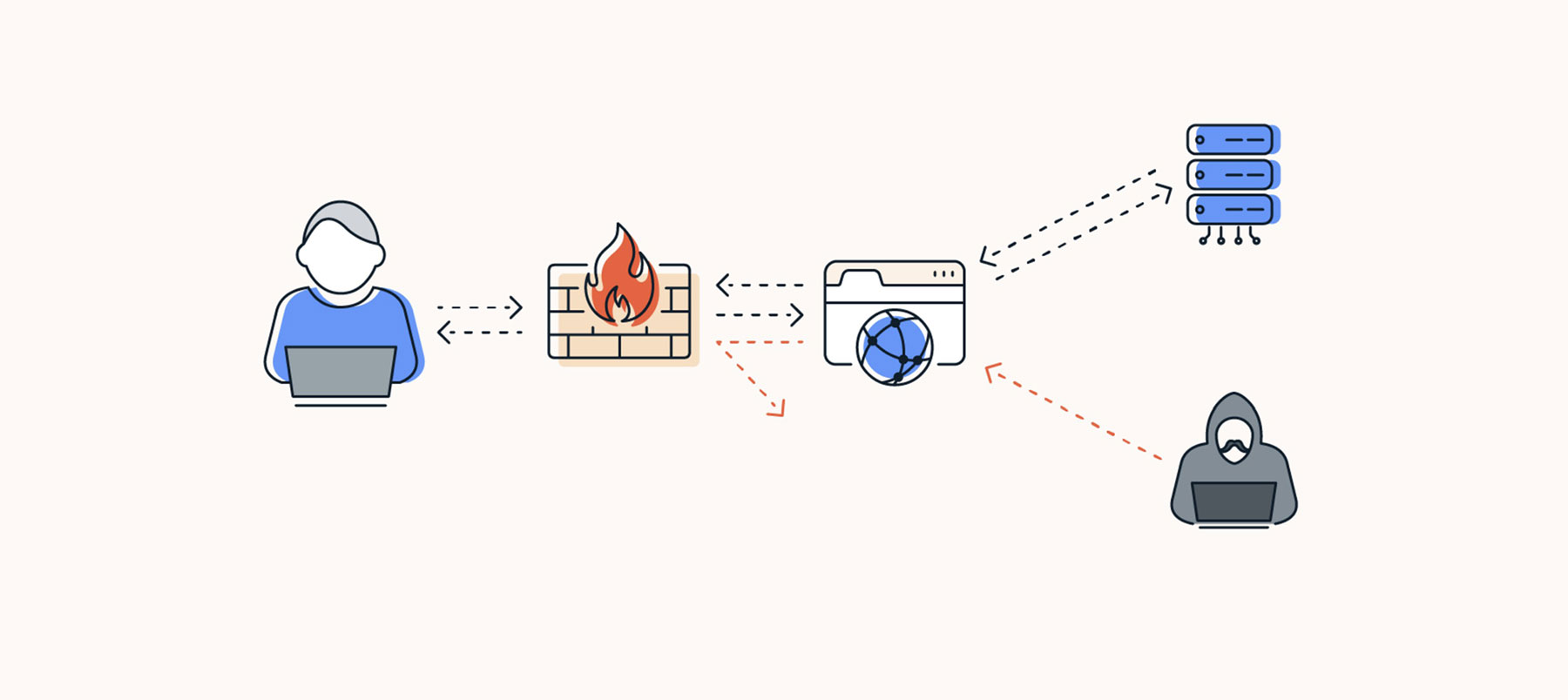
ufw- Manage firewall rules (Ubuntu).iptables- Manage packet filtering rules.
System and Command Information:
alias- Create shortcuts for commands.wheris command- Locate the binary, source, and manual pages for a command.whatis command- Display a one-line description of a command.
Low-level Operations:
dd if=input of=output- Convert and copy files at a low level.export- Set environment variables for the current session.
Final Tips:
Run Multiple Commands:
- Use
Command1; Command2to run multiple commands sequentially. - Use
Command1 && Command2to run the second command only if the first is successful.
- Use
Clear Terminal:
- Use
clearto clean the terminal screen.
- Use